Cloud & Microsoft 365
SharePoint or a file server: where to keep company files
Many companies have documents scattered everywhere: some on an old office server, some on OneDrive, some emailed back and forth. Choosing between SharePoint/OneDrive and a local file server is not about trends — it comes down to a few concrete factors: who needs access from where, how large the files are, what it costs, and what happens when the internet goes down. Here is the comparison, criterion by criterion. An accounting firm with 10 employees who often work from home feels this difference immediately, especially when a client urgently asks for a document from a year ago.
Remote access
SharePoint/OneDrive clearly wins here: documents are reachable from any browser or app, from home, from a client site, or on the road, with no VPN needed. A local file server usually requires a VPN connection for access from outside the office — it works, but it is an extra step and more technical setup.
For teams that often work from client sites or on the road, this detail matters more than it seems — a broken or forgotten VPN setup blocks access exactly when you need a document urgently.
Versioning, permissions and file recovery
SharePoint automatically keeps previous versions of every document, and restoring a version from two days ago takes a few clicks. On a local server, versioning has to be set up separately (for example through disk snapshots), and in practice many companies never enable it properly, leaving backup as the only safety net.
On permissions, both options support folder- or document-level control, but SharePoint makes them more visible and easier to audit: you can quickly see who has access to what, and set expiring links for external collaborators. On a local server, NTFS permissions do the same job, but need more careful administration, or exceptions pile up and become hard to track over time.
Backup: who is responsible
Microsoft keeps your data on its infrastructure, but does not automatically provide full backup in the classic sense — a permanently deleted or wrongly overwritten file still needs a separate backup solution. A local server depends entirely on the backup you (or your IT provider) set up, on-site and, ideally, off-site as well. In both cases, "it's in the cloud" or "it's on the server" does not automatically mean "it's safe."
In practice, many companies wrongly assume "it's with Microsoft, so it's safe." Test an actual file restore periodically, not just the presence of a backup button in the menu.
Cost and speed on large files
The cost gap becomes visible mainly past 20-30 users, where monthly subscriptions add up, and a well-chosen local server can end up cheaper per user over a 3-4 year span.
- Cost — SharePoint/OneDrive is a predictable monthly subscription per user, with no large upfront investment. A file server requires buying the hardware, but the ongoing monthly cost can be lower, especially at large data volumes.
- Speed on large files — heavy projects (video, CAD, photo archives) are usually faster to work with on a local server over the internal network than uploading and downloading from the cloud, especially with a weaker internet connection.
What happens when the internet goes down
Here the local server clearly wins: files stay accessible on the internal network even if the internet is down, only remote access is temporarily lost. On SharePoint/OneDrive, without active local sync, an internet outage can mean zero access to documents for hours — a real risk for companies in areas with unstable connections.
For a manufacturing company or a warehouse where the internet drops often, this detail can outweigh every other criterion combined.
When a hybrid setup makes sense
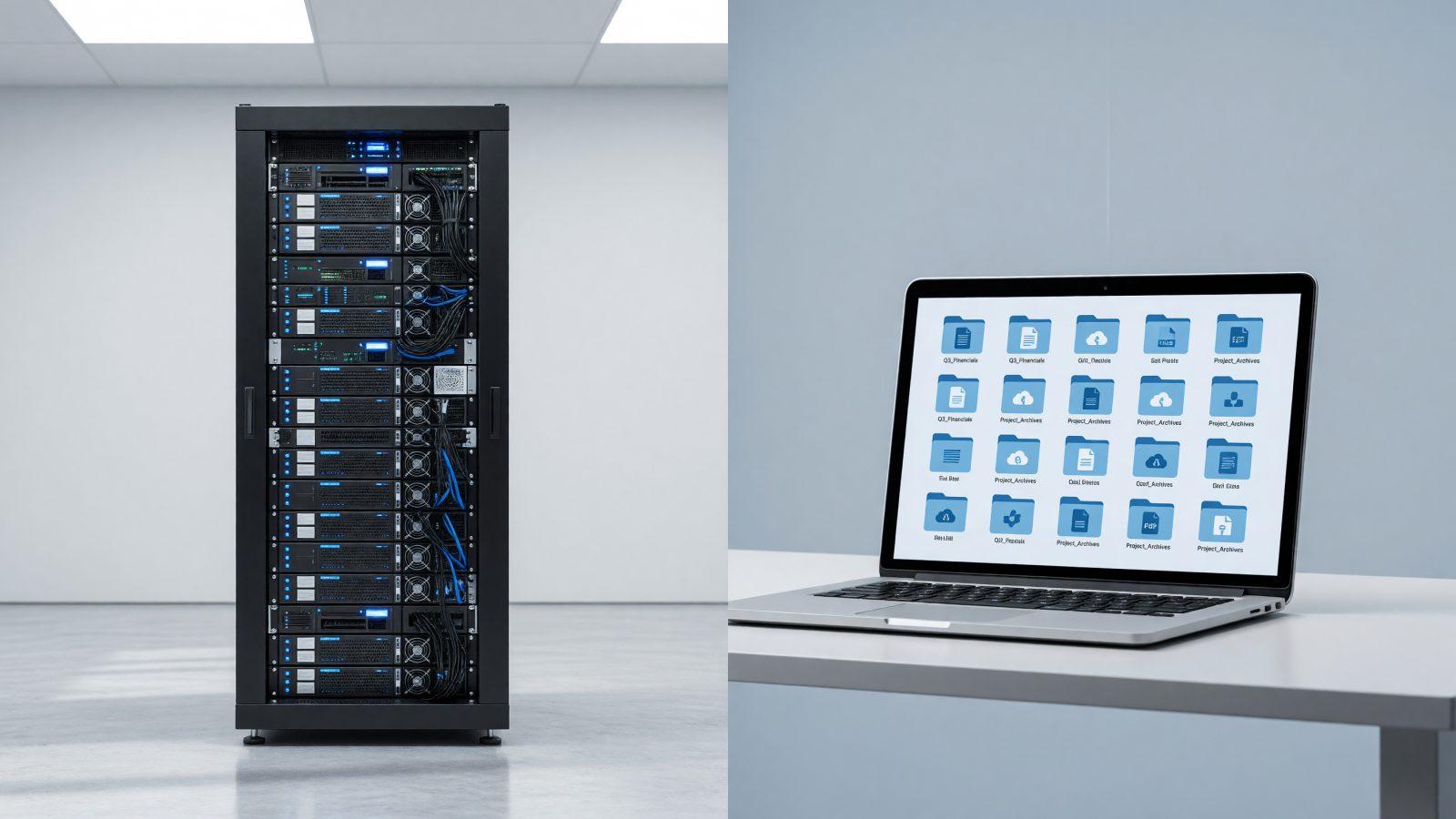
Many companies end up combining both: current working documents and files shared with clients live in SharePoint/OneDrive, for easy access and collaboration, while large archives or heavy project files sit on a local server or in a hybrid cloud, synced periodically between the two. A hybrid setup makes the most sense for companies with 15-50 employees, large data volumes, and a real need for remote access.
How to start
There is no universal answer — the right one depends on how many employees you have, how large your files are, and where people work from. See what our hybrid cloud and cloud backup services cover, or contact us for a recommendation fitted to your company.